The number nobody can explain
Open System Settings → General → Storage on macOS 13 or later and you get a coloured bar: Applications, Documents, Photos, Messages, macOS — and then a grey block called System Data. On my own Mac it has been anywhere between 20 GB and 130 GB. Click it and macOS gives you no breakdown at all. Just a size.
That grey bar is the reason I started building Klarity, a Mac disk space analyzer, in the first place. It is not a bug, and it is not a virus, and it is almost never something you need to panic about. But it is genuinely unhelpful, so here is what is hiding in there.
What System Data actually is
System Data is not a folder. It is a leftover bucket: everything on your disk that macOS could not confidently assign to one of the named categories gets counted here. In practice that means:
- App caches — mostly
~/Library/Caches, where apps keep downloaded data they can regenerate. - Logs and app support data — diagnostic logs and the working files apps keep in Application Support.
- Xcode —
~/Library/Developer: DerivedData build output, iOS and watchOS simulator runtimes, and device support files. If you write software, this is usually the biggest single item. - Time Machine local snapshots — APFS snapshots kept on your internal disk between backups. If those backups go to a Time Capsule, note that macOS 27 no longer supports it. List them with
tmutil listlocalsnapshots /. - Swap and the sleep image — virtual memory files in
/private/var/vm, sized by how much RAM pressure your Mac is under. - Spotlight indexes, mail attachments, browser profiles and disk images.
- Container data for sandboxed apps —
~/Library/Containersand~/Library/Group Containers, where App Store apps keep their real data.
Notice how much of that lives in one place: ~/Library, the Library folder inside your home folder. That is where you should look first.
How to actually see inside it
macOS marks ~/Library as hidden, which is why Finder never shows it to you. Klarity scans hidden folders (since version 1.3.1), so a plain Home scan includes ~/Library, and it has its own shortcut in the sidebar.
The quickest route: click Library in Klarity’s sidebar, and give Klarity access once if it asks. That scans the folder on its own, so it fills the whole map. Then let the treemap do its job: the biggest rectangles are your answer, and you can drill into Caches, Developer and Containers from there.
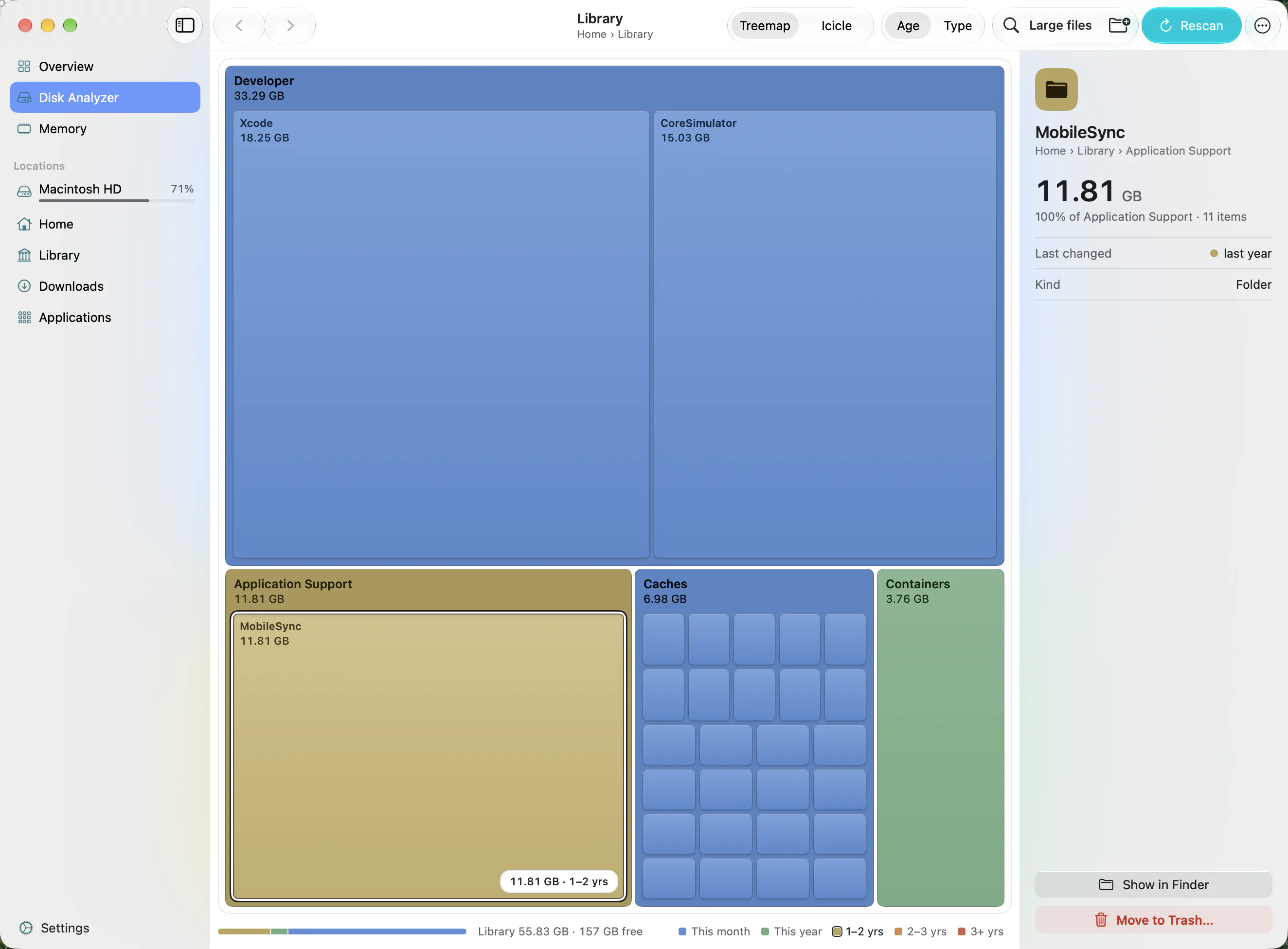
To double-check any number without an app, Finder can show one folder at a time: Go → Go to Folder… (Cmd + Shift + G), type ~/Library, select a folder and press Cmd + I to see its size.
Klarity’s age heatmap colours everything by last-modified date. Point it at ~/Library and the stale material stands out immediately — caches for apps you uninstalled two years ago, simulator runtimes for an iOS version nobody targets any more. Old and large is the combination worth acting on.
Folders are hidden for a reason: they belong to apps and to macOS, not to you, and the names inside them rarely say what they do. Before trashing anything in ~/Library, quit the app that owns it, and if you cannot say which app that is, leave the folder alone. Klarity only moves items to the Trash, so a mistake is recoverable right up until someone empties it — but an app that suddenly cannot find its settings or its data will not tell you why. The safe targets are the ones named in the next section; everything else in there deserves the benefit of the doubt.
To put a number on it: on my own Mac, ~/Library/Caches was 9.7 GB and ~/Library/Developer was 91 GB — almost all of it simulator runtimes and DerivedData. That is a hundred gigabytes of “System Data” explained by two folders.
What is safe to clear
These are the things I delete on my own machine without hesitating:
- The contents of
~/Library/Caches. Apps rebuild caches on demand. Delete the contents of the subfolders, quit the apps first where you can, and expect the first launch afterwards to be a little slower. - Xcode DerivedData (
~/Library/Developer/Xcode/DerivedData). It is build output. Your next build regenerates it. - Unused simulator runtimes. Remove these properly through Xcode → Settings → Platforms rather than deleting files by hand, so Xcode’s bookkeeping stays consistent.
- Old
~/Library/Developer/Xcode/iOS DeviceSupportfolders. One per iOS version you have ever debugged against; the ancient ones are dead weight. - Old iOS device backups you no longer need — manage those in Finder’s device backup manager, not by deleting folders.
- Local Time Machine snapshots, with
tmutil deletelocalsnapshots. macOS thins these automatically when space gets tight, so this is mostly for when you need space right now. - The Trash. Obvious, but easy to forget — items sitting in it still occupy the disk, and files trashed from an external drive stay on that drive until you empty it.
Worth saying plainly how Klarity behaves here, because deletion tools deserve scrutiny: Klarity only ever moves items to the Trash, and only after you confirm — anything over 1 GB needs a deliberate slide to confirm. It never empties the Trash for you, and it never touches system folders on its own initiative. If you change your mind, the file is still there.
What to leave alone
Some of System Data is load-bearing. Do not go near:
/System— the sealed system volume. It is protected for good reason./Librarysystem frameworks — shared machinery that apps depend on.~/Library/Preferences— your settings for every app you own.~/Library/Keychains— your passwords and certificates. Deleting this is genuinely destructive.~/Library/Application Supportfor apps you actually use — despite the vague name, this is often real data, not cache.- Anything in
ContainersorGroup Containersfor an app you still use. For a sandboxed app, that folder is the app’s documents.
The rule I use: if I cannot name what created a folder and why, I leave it. Reclaiming four gigabytes is not worth an afternoon of reconfiguring an app.
Why the numbers will never match
Once you start measuring, you will find the figure in Storage settings does not agree with what a folder scan reports. That is expected, not an error in either tool.
Storage settings counts purgeable space — material macOS is willing to evict automatically when you need room — and it counts APFS snapshots, which are not files you can walk to. A scanner walks directories and adds up what is really there. The two are answering slightly different questions, so treat Storage settings as the headline and a folder scan as the explanation. When they disagree by tens of gigabytes, local snapshots are usually the difference. That gap is widest in the days after a system update — where the space goes after a macOS update covers what is being held and what comes back on its own. The same gap is why an installer can refuse to run while Storage settings shows room to spare — see how much free space macOS 27 needs.
In short
System Data is not mysterious once you look at it. It is mostly caches, mostly Xcode if you are a developer, and mostly recoverable. Scan ~/Library as its own root, sort by size, check the dates, and deal with the two or three folders that account for nearly all of it. Then stop — the long tail is not worth the risk.
Klarity Disk is $6.99 on the Mac App Store, one payment, and it makes that particular scan about a thirty-second job. If you hit something I have not covered here, get in touch — I answer my own support mail.
Questions people ask
Can I delete System Data on a Mac?
Parts of it. The safe targets are app caches in ~/Library/Caches, Xcode DerivedData and old simulator runtimes, local Time Machine snapshots, and the Trash. Preferences, Keychains, Application Support for apps you use, and app Containers are real data, not cache, and should stay.
Why is my System Data 100 GB or more?
Almost always one of three things: Xcode simulator runtimes and DerivedData if you write software, local Time Machine snapshots waiting to be thinned, or a single app's cache that has grown unchecked. Scan ~/Library sorted by size and the answer is usually the top two folders.
Why does System Data not match what a folder scan shows?
Storage settings counts purgeable space and APFS snapshots, which are not files a scanner can walk to. A folder scan adds up what is really on disk. Treat Storage settings as the headline and the scan as the explanation; local snapshots are usually the gap.
Will System Data come back after I clear it?
Some of it, yes. Caches are rebuilt as you use apps, and snapshots are created every hour while Time Machine is on. That is normal. What should not come back is the stale material: old simulator runtimes, caches for apps you removed, and backups of devices you no longer own.
For the wider job of freeing up space, see how to clean up Mac storage safely and how to find large files on a Mac.
— Mukul