Your external drive is full. A USB stick, a portable SSD, a memory card, or the big hard drive that has collected copies of things for years. Finder shows the warning and stops there: it tells you the drive is full, not what filled it.
This guide is about getting that sight back: seeing everything on the drive at once, spotting what is both large and long forgotten, and clearing it without surprises. External drives also have three traps of their own, covered plainly below: space that does not come back after you delete, drives that refuse to delete anything, and Time Machine disks.
Why a full drive is so hard to read
Finder can give you the total: select the drive in the sidebar, press Cmd + I, and Get Info shows its capacity, used and free space. What it will not show is what makes up the used part.
For that, Finder makes you open folders one at a time. List view can show folder sizes if you turn on Calculate all sizes in View Options (Cmd + J), but you still see one level of one folder. A drive that has gathered backups, exports and copies of copies for years holds thousands of folders, and you are looking for the handful that matter, one window at a time.
What usually fills an external drive
The same few things are usually behind the big numbers:
- Backups made by hand. A “MacBook backup” folder copied over before a trade-in, then another a year later. Often the same files twice.
- Video. Footage, screen recordings and editing projects grow to gigabytes fast, and they are usually the first thing moved off a Mac.
- Photo libraries and exports moved off the Mac to save room, then forgotten.
- Disk images and archives. Installers and zip files for things set up long ago.
- Old projects from work or college, kept “just in case”.
- The drive’s own Trash. Files you already deleted from this drive may still be on it. More on that below.
None of these announce themselves. A folder called “Stuff” might hold 2 GB or 400 GB, and nothing in a Finder window tells you which until you open it.
See the whole drive at once with Klarity
Klarity, the Mac disk space analyzer I build, answers the question in one picture. It draws the drive as a treemap: every folder is a rectangle, and its area is the space it takes up. The biggest rectangles are where your space went, and you see them before you read a single name.
- Plug in the drive, then open Klarity.
- Click your drive under Devices in Klarity’s sidebar.
- Give Klarity access once if it asks. It remembers the drive after that.
Klarity scans a drive only when you point it at that drive: Macintosh HD in the sidebar covers your Mac’s own disk and leaves external drives out. The title above the map names the drive, so you always know which disk you are looking at. One quirk in the current version: if Klarity was already open when you plugged in a drive you have scanned before, the map can come up empty. Quit Klarity and open it again; a fix is coming in the next update.
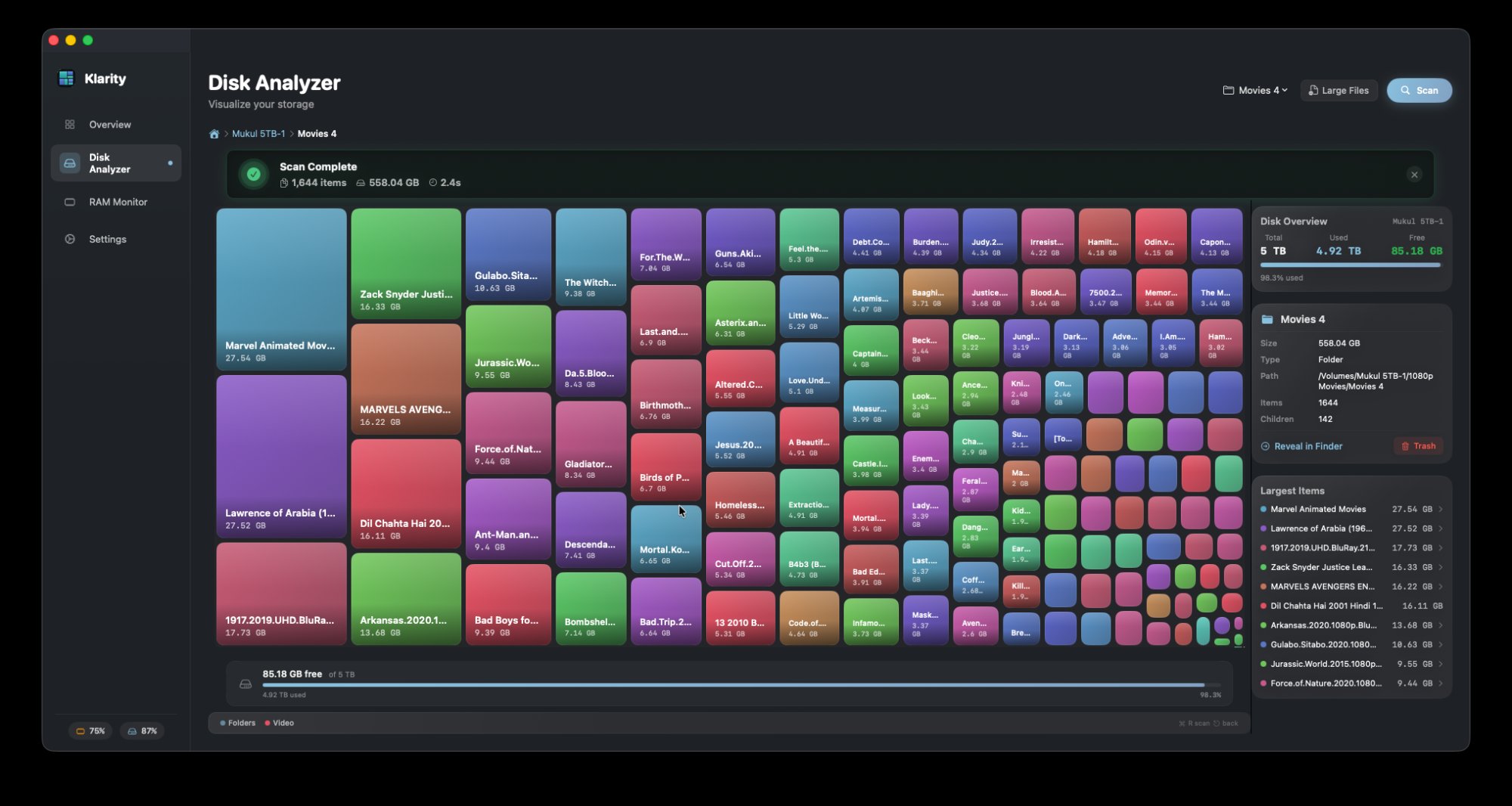
Double-click a rectangle to go inside it, and press Escape to come back up. Click once to see the folder’s details in the inspector on the right, or right-click it to reveal it in Finder.
The colour does the rest. The map starts out coloured by age: how long since anything in each folder last changed, from under a week to more than two years. On an external drive that is often the whole story: the large rectangles untouched for two years are the backups and old projects you forgot, and the ones that changed this week are what you are using. For more on hunting down old material, see how to find old files on a Mac.
One permission per drive
Apps from the Mac App Store can only touch the places you point them at yourself. Picking the drive in Choose Folder is that pointing: it lets Klarity read the drive and move things from it to the Trash, with no separate permission to give before a delete.
Klarity remembers a separate permission for each drive you pick. If it ever needs a drive you have not given it, it says which drive and why, then opens Apple’s own picker on that drive. Nothing leaves your Mac: Klarity has no network access at all. The reasons it works this way are in why Klarity asks once per drive.
Clearing it: the Trash lives on the drive too
When you find something to go, right-click it and choose Move to Trash. Klarity asks first every time. A folder of 1 GB or more needs a deliberate slide to confirm rather than a click.
Then comes the part that catches people out. Moving something to the Trash from an external drive does not take it off the drive. macOS keeps it in a hidden Trash folder on that same drive, so you can put it back. Until the Trash is emptied, the drive is exactly as full as before.
Klarity only ever moves things to the Trash. It never empties the Trash for you, so the last step is yours:
- Keep the drive plugged in. Emptying the Trash only clears what is on drives that are connected.
- Empty the Trash in Finder. Right-click the Trash in the Dock and choose Empty Trash.
- Check the free space again with Get Info.
After each move, Klarity rescans the drive, so the rectangle you trashed disappears from the map straight away. The space itself only comes back at step 2.
When the numbers disagree, or nothing will move
Klarity’s total is lower than Finder’s. macOS keeps some housekeeping of its own on the drives it uses, the drive’s Trash among them, and it does not let apps look inside all of it. So the map adds up what Klarity can read, while Finder’s Used figure also counts the rest. A small gap is normal. A large one is often a Trash that has not been emptied yet.
Nothing will move to the Trash. If the drive was set up on a Windows PC, it is probably formatted as NTFS, and a Mac can read an NTFS drive but not change anything on it. Klarity can still show you what fills it, but it cannot move anything off it, and neither can Finder. To check, select the drive in Finder and press Cmd + I: the Format line will say NTFS. A memory card with its lock switch on behaves the same way. If the drive has to work with Macs and Windows PCs alike, Disk Utility can reformat it as ExFAT, which both can read and write. Reformatting erases the drive, so copy off what you want to keep first.
It is your Time Machine backup disk. Leave that one to Time Machine, and do not clear it by deleting folders, with Klarity or any other disk tool. Time Machine manages the disk itself: when it fills up, it deletes the oldest backups to make room. If you want more history than fits, the answer is a larger backup disk. And if your backups still go to an AirPort Time Capsule, macOS 27 can no longer use it.
Try it on your drive
Klarity Disk is $6.99 once on the Mac App Store, for macOS 14.6 or later. No subscription, no account, and nothing sent anywhere. Plug in the drive, choose it, scan it, and the answer is the biggest rectangle on the screen. For the same job on your Mac’s own disk, see how to find large files on a Mac.
Questions people ask
How do I see what's taking up space on my external hard drive on a Mac?
Finder shows the total with Get Info (Cmd + I) but not what makes it up. A disk analyzer such as Klarity draws every folder on the drive as a rectangle sized by the space it uses, so the biggest stand out at once. In Klarity, pick the drive with Choose Folder, then click Scan.
Why is my external drive still full after I deleted files?
Files you move to the Trash from an external drive stay on that drive, in a hidden Trash folder, until the Trash is emptied. Empty the Trash in Finder while the drive is still connected, and the space comes back.
Why can't I delete files from my external drive on a Mac?
Usually because the drive is formatted as NTFS, the Windows format, which a Mac can read but not change. A memory card with its lock switch on behaves the same way. You can still see what fills the drive. To change anything on an NTFS drive from a Mac without extra software, it has to be reformatted, which erases it, so copy your files off first.
Is it safe to delete folders from a Time Machine backup drive?
Not by hand. Time Machine manages its own backups and deletes the oldest ones automatically when the disk is full. Leave its folders alone, and if you need more room for backups, use a larger disk.
Does Klarity work with external drives?
Yes. Pick the drive with Choose Folder and click Scan. That also lets Klarity move things from it to the Trash, which it does only after you confirm. It never empties the Trash for you.
— Mukul