“There is not enough free space to install macOS 27”
macOS 27 Golden Gate needs about 40 GB of free space to install, and 50 GB to go smoothly. Apple publishes no official figure: the download is about 18 GB, and the upgrade also needs room to unpack it and to keep your current system until the new one works. Apple Intelligence then takes another 20 GB or so once it is done.
macOS 27 Golden Gate arrived on 14 September, and the first fix, 27.0.1, followed on 28 September. For a lot of people the upgrade stops before it starts: Software Update says the disk is too full and asks you to free up space, without saying how much, or where it should come from.
If your Mac has a 256 GB drive — a 256 GB MacBook Air, one of the M1 machines still going strong, the new MacBook Neo — this is not bad luck. It is arithmetic. An upgrade needs room to work, and a small disk that has been in daily use for a couple of years rarely has it spare.
How much free space macOS 27 actually needs
Apple does not publish a figure for Golden Gate. Its compatibility list says which Macs qualify (every Mac with Apple silicon, and no Intel models), and its upgrade guide says to back up first, but neither gives a number. That is why the sites you have already checked disagree: each is estimating from a different measurement.
Here is what the space is actually for:
- The download. The full installer is about 18 GB.
- Room to unpack it. The download is compressed, and the installer expands it before it puts anything in place.
- Your current system, kept until the new one works. macOS holds on to it so a failed install can roll back, and lets it go afterwards.
- Apple Intelligence, straight afterwards. Its on-device models download automatically once the upgrade finishes, and in macOS 27 they cannot be switched off. Apple says they use up to 8 GB, or 14 GB on M3 and later Macs with at least 12 GB of memory, but owners are measuring 20 to 30 GB, so leave room for that too.
Put together, the practical answer is this: have 40 GB free before you press Update, and 50 GB if you want it to go smoothly — then expect Apple Intelligence to claim another 20 GB or so in the days after. The minimum you will see quoted is around 35 GB, which leaves no margin at all. On a 256 GB Mac, 40 GB is about a sixth of the whole disk.
Why Storage settings says you have enough, and the installer disagrees
System Settings → General → Storage shows available space, and that includes space macOS has marked as purgeable: Time Machine’s local snapshots, caches, iCloud files it can download again. macOS clears those when something needs the room, but not always in time for an installer that checks before it begins.
So before deleting anything, restart, wait a few minutes and try once more. If Software Update still refuses, the space has to come from your own files — and that is where most people lose an evening. A disk map such as Klarity turns that evening into minutes.
Finding 40 GB in minutes, not an evening
Freeing space is not the hard part. Finding it is. The Storage settings bar can tell you Documents is 60 GB. It cannot tell you that 40 of those are two screen recordings and a video export you forgot about.
Klarity, the Mac disk space analyzer I build, draws your disk as a treemap. Every folder is a rectangle, and its area is the space it holds. Click Scan Macintosh HD, give it access once, and the things standing between you and macOS 27 are the biggest shapes on the screen. Each one is coloured by how long since it last changed, so big and untouched for a year is exactly where to start.
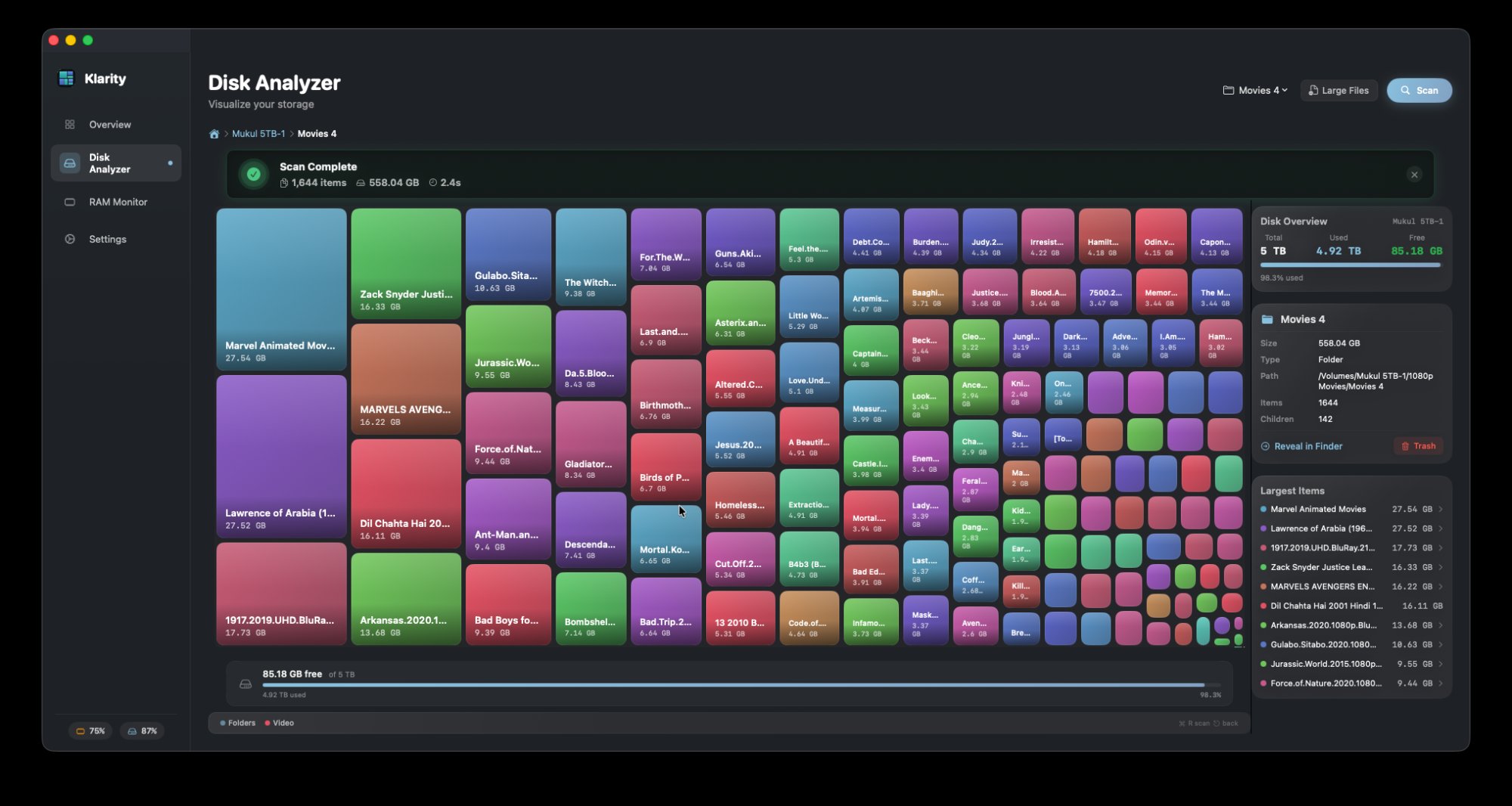
Right-click a rectangle and choose Move to Trash. It asks first every time, a folder of 1 GB or more needs a deliberate slide to confirm rather than a click, and it never deletes anything outright. Then empty the Trash yourself — until you do, the space is not free, and the installer knows it.
It is $6.99 on the Mac App Store — one payment, no subscription, macOS 14.6 or later. If Software Update is waiting on you right now, it is the quickest way to find the space.
What usually makes up the 40 GB
On a Mac that has been in use for a year or two, the same few things turn up as the big rectangles:
- Old macOS installers in Applications. An
Install macOS TahoeorInstall macOS Sequoialeft from a previous year is usually more than 10 GB, and it will never be used again. The safest big win there is. - Downloads. Disk images for apps you installed long ago, zip files you already opened, videos you meant to watch. Pick Downloads from Klarity’s folder menu, or open its large-file finder to see them biggest first.
- Movies, screen recordings and video projects. A few minutes of screen recording runs to gigabytes. iMovie and Final Cut libraries also hold render files that can be removed from inside the app, which is better than deleting them by hand.
- Virtual machines. A Parallels virtual machine is one bundle that often runs to tens of gigabytes. If you no longer start it up, it is often the single biggest win on this list.
- iPhone and iPad backups. Often 10 to 50 GB each. They live inside a hidden Library folder, which the current version of Klarity does not open on a normal scan (1.3.1 fixes that), so remove them the supported way: Finder → your device in the sidebar → Manage Backups.
- The Trash. Anything in it still takes up the disk.
Two things never to delete by hand: your Photos library (turn on Optimize Mac Storage in Photos settings instead, if you use iCloud Photos) and anything inside the System folder. If the biggest rectangle on your scan is something you do not recognise, what System Data on a Mac actually is explains what lives in there.
Klarity is $6.99 on the Mac App Store. One scan shows you where your 40 GB is.
Before you press Update
- Back up. Apple’s own advice, and the one step that turns a failed install into an inconvenience instead of a loss.
- Leave Time Machine switched on. Turning it off to claw back snapshot space trades a small problem for a large one.
- Plug in the charger and give it an hour you do not need the Mac for.
- Restart once, then check Storage settings again. Some purgeable space comes back on its own.
- Afterwards, look again. If a full installer is sitting in Applications — one you downloaded but never ran — it is safe to remove, and a few other things grow for a day or two after an upgrade. Where the space goes after a macOS update covers what to clear and what comes back by itself.
Why $6.99 once is the right price for this
You will be making room again next September, and the September after. Klarity is one payment: no subscription, no account, no sign-in, and no network access at all — the app has no way to send anything anywhere. It runs on macOS 14.6 or later, on Apple Silicon and Intel.
A subscription cleaner bills you every year for a job you do once or twice a year, and asks for broad authority over your files in return. Klarity shows you the disk, moves to the Trash only what you choose, and cannot remove anything permanently. Weighing it against another analyser? Here is an honest comparison, including where the other one is better. For a wider tidy-up once the upgrade is done, see how to clean up Mac storage safely.
Questions people ask
How much free space do I need to install macOS 27 Golden Gate?
Apple does not publish a figure. The download is about 18 GB, the installer needs room to unpack it and to keep your current system until the new one works, and Apple Intelligence then downloads models Apple puts at up to 14 GB, which owners report reaching 20 to 30 GB. Plan for 40 GB free before you start, and 50 GB if you want it to go smoothly.
Why does my Mac say there is not enough space when Storage settings shows enough?
Storage settings shows available space, which includes purgeable space: snapshots, caches and iCloud files macOS can remove when something needs the room. It does not always remove them in time for the installer. Restart, wait a few minutes and try again. If it still refuses, the space has to come from your own files.
Can a Mac with 256 GB of storage run macOS 27?
Yes. Every Mac with Apple silicon can run macOS 27, including 256 GB models such as older MacBook Air models and the MacBook Neo. On a small disk the difficulty is making room for the upgrade, not running the new system, and the room usually comes from old installers, downloads, videos and device backups.
Is it safe to delete old Install macOS apps?
Yes. An installer for an older macOS, such as Install macOS Tahoe, has no further use once your Mac has moved on, and it is usually more than ten gigabytes. Move it to the Trash and empty the Trash. Apple keeps recent versions available to download again if you ever need one.
Does Klarity delete my files?
No. It only ever moves things to the Trash, and it asks first every time. A folder of 1 GB or more needs a deliberate slide to confirm rather than a click, and anything smaller gets a plain confirmation alert. It never deletes outright and never empties the Trash for you.
— Mukul