Your Time Capsule did not break. macOS 27 stopped talking to it
If your Mac has backed up to an AirPort Time Capsule for years, macOS 27 ends that. Time Machine reaches a Time Capsule over an old file-sharing protocol called AFP, and Apple’s page on backup disks now says plainly that AFP is not supported in macOS 27 or later. Apple no longer recommends Time Capsule or AirPort Extreme for backups at all.
It was not sprung on anyone: macOS 26 had already started warning Time Capsule owners, MacRumors reports. But for a lot of people the first sign is a backup that quietly stopped. If that is you, here is the way forward, in order.
What Apple says to use instead
- An external drive plugged in over USB or Thunderbolt. Apple calls it the most common Time Machine setup, and it is the one I would pick.
- A network drive (NAS) that supports Time Machine over SMB, the newer file-sharing protocol. The maker’s instructions cover the setup.
- Another Mac on your network, sharing a folder as the backup destination, if both Macs run macOS 11 or later.
You will also find enthusiasts who have got a Time Capsule to accept newer connections by loading their own server software onto it; Howard Oakley has written about it. It is clever, and Apple does not support it. I would not trust the only backup of my Mac to it.
Before Time Machine erases a drive, look at what is on it
Setting up a backup drive can mean erasing it, and Apple’s guide is blunt about what that does: erasing permanently removes all the files on the disk. A brand-new drive has nothing to lose. An old one from a drawer often does: a photo export, a “MacBook backup” folder copied over by hand before a trade-in, the only copy of something.
Klarity, the Mac disk space analyzer I build, shows you what is on a drive in one picture. Plug the drive in, then open Klarity, click the drive under Devices in the sidebar, and give Klarity access once if it asks. Every folder becomes a rectangle sized by the space it takes, coloured by how long since it last changed, from blue for this month to red for three years or more. Click a rectangle and the inspector shows its size and when it last changed; Large files in the toolbar lists the biggest single files. Copy off what you want to keep, then hand the drive to Time Machine.
Klarity answers the other half of the question too: how big the new drive needs to be. Click Macintosh HD in the sidebar, and the total under the map shows how much your Mac holds today.
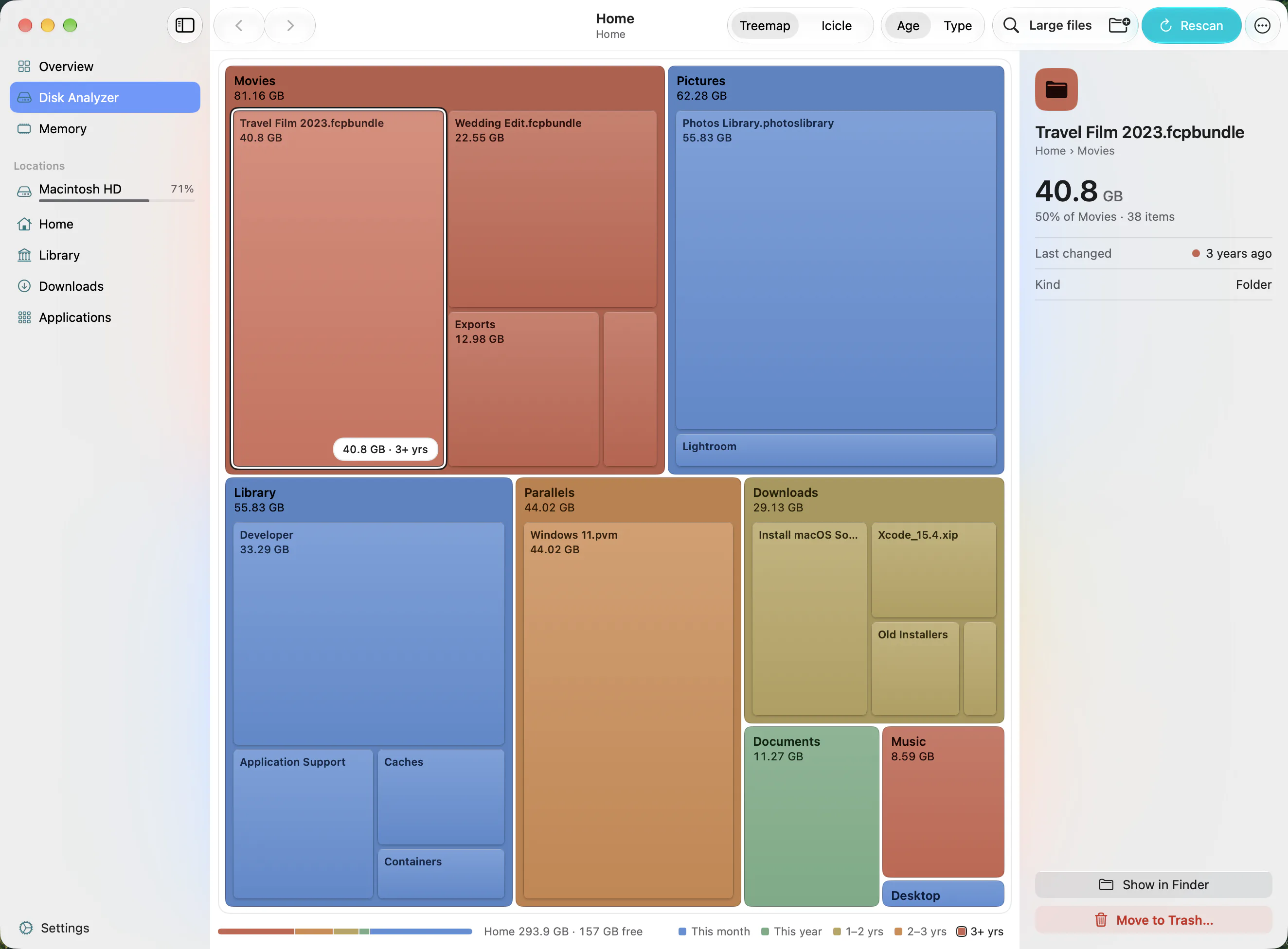
One thing Klarity is not: a backup browser. It cannot look inside Time Machine backups, or inside the local snapshots macOS keeps on your Mac between backups. To browse or restore a backup, use Time Machine itself.
Klarity is $6.99 once on the Mac App Store, for macOS 14.6 or later. No subscription, no account, and no network access at all.
Setting up the new drive
- Plug the drive into your Mac.
- Open System Settings → General → Time Machine.
- Click Add Backup Disk, choose the drive, and click Set Up Disk.
- In the window that appears you can limit how much of the disk the backups may use, and turn on encryption. I would encrypt: a backup drive holds a copy of everything on your Mac. If you do, keep the password somewhere safe.
Then leave it alone. Apple suggests starting in the evening, because the first backup can run overnight; the ones after it take much less time. From then on Time Machine makes hourly, daily and weekly backups by itself.
How big should the new drive be?
Apple’s page does not give a size. Time Machine keeps older versions of your files as well as the latest, so a drive only as big as your Mac fills up fast; comfortably bigger is better. The backup also grows when macOS does: Oakley found that upgrading to macOS 27 added about 10 GB to his backups, and that space did not come back. If you want more history than fits, the answer is a bigger drive, not deleting folders from the backup.
What to do with the old backups
- Keep the Time Capsule for now. A Mac on macOS 27 cannot reach it, but Apple’s note covers macOS 27 and later, so a Mac still on an older version can. Keep it until the new drive has a few weeks of history.
- Never clear a backup by hand. Do not drag folders from a Time Machine drive to the Trash, with Klarity or any other tool. Time Machine manages its own backups.
- Encrypted drives in the older format. Apple has repeated that encrypted Mac OS Extended, the format older backup drives used, is deprecated and will not be supported in a future version of macOS. If your current backup drive is one, a fresh start on the new drive avoids the question.
- AirPort Utility is no longer included in new clean installations of macOS, Oakley notes. If you still need to change a Time Capsule’s settings, do it from a Mac that has it.
Questions people ask
Does Time Capsule work with macOS 27?
No. Time Machine backs up to an AirPort Time Capsule over a file-sharing protocol called AFP, and Apple says AFP isn't supported in macOS 27 or later. Apple no longer recommends Time Capsule or AirPort Extreme for backups.
What should I use instead of a Time Capsule?
Apple lists three options: an external drive connected over USB or Thunderbolt, which is the most common setup; a network drive that supports Time Machine over SMB; or another Mac on your network sharing a folder, with both Macs on macOS 11 or later.
Can I still get files back from my old Time Capsule backups?
Not from a Mac running macOS 27, which no longer supports the protocol the Time Capsule uses. Apple's note covers macOS 27 and later, so a Mac still on an older version of macOS can reach it. Keep the Time Capsule until your new backups have a few weeks of history.
Can Klarity show what is inside my Time Machine backup?
No. Klarity does not look inside Time Machine backups or the local snapshots on your Mac; use Time Machine itself to browse and restore. What Klarity shows is what is on a drive before Time Machine erases it, and how much your Mac holds, so you can choose the right size of drive.
— Mukul