A small disk rarely fills up in one go
On a 256 GB MacBook Air or Mac mini, the space feels like plenty for months. Then a message says your disk is almost full, and it is hard to say what happened. Nothing big arrived. A lot of ordinary things did: screen recordings, app updates, a phone backup, downloads nobody opened again.
That is the real trouble with a small drive. It is not that it is small; it is that it fills out of sight. Storage settings shows a coloured bar in a few categories, not which folder grew this month. By the time the warning comes you are deleting in a hurry, and a hurry is when the wrong things go.
This guide is about the other way: a regular, short look at what is growing, so the disk never gets to the warning. If you are here because a macOS upgrade will not fit, how much space macOS 27 needs covers that case on its own.
Is 256 GB enough for a Mac?
For a lot of people, yes. If most of your work lives in a browser and office apps, your photos are in iCloud, and you do not edit video, 256 GB is a workable size — as long as you keep an eye on it.
It gets tight when large things live on the Mac itself: video projects and screen recordings, a Photos library kept in full, virtual machines, games, music libraries or developer tools. None of that means you bought the wrong Mac. It means you need to see where your space is: which folders are big, and which of those are still growing.
Keeping the disk in sight with Klarity
Klarity, the Mac disk space analyzer I build, draws your disk as a treemap. Every folder is a rectangle, and its area is the space it holds. Click Scan Macintosh HD, give it access once, and the biggest things on your Mac are the biggest shapes on the screen.
What makes it work as a habit, rather than a one-off rescue, is colour. By default each rectangle is coloured by how long since it last changed: blue for this month, through green, gold and orange, to red for three years or more untouched. That gives every look two questions:
- Big and blue: large, and changed recently. This is what is growing: a project folder, a pile of downloads, a game that updated itself. Often you keep it, but it is worth knowing.
- Big and red: large, and untouched for a long time. This is forgotten bulk, and on a small disk it is where most of the space comes back from.
Klarity also lives in the menu bar. By default it shows two small percentages there, memory and disk (Settings can show either one alone), and a click opens a panel with how much of the disk is used and free. One honest note: in the current version the menu bar takes its disk reading when Klarity starts, so treat it as a daily glance rather than a live gauge. The Disk Analyzer shows the current free space each time you open it.
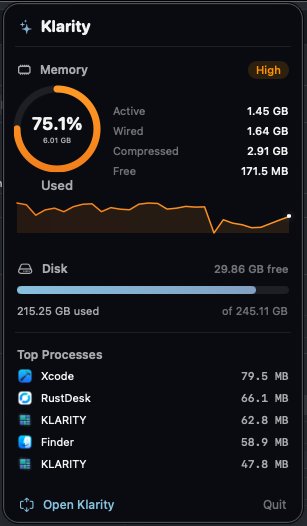
It is $6.99 on the Mac App Store — one payment, no subscription, macOS 14.6 or later.
A ten-minute look, once a month
The routine I suggest is short enough to actually keep. Pick a day each month you will remember, and do this:
- Glance at the number. Note the disk figure in the menu bar, or the free space at the bottom of the Disk Analyzer. If it has jumped since last month, the scan will show you why.
- Scan Macintosh HD and look at the biggest blue rectangles first. Double-click into them. You are looking for growth you did not expect: a folder of screen recordings, a video export you needed once.
- Then look at the biggest red ones. Old projects, installers, disk images, a film downloaded for a flight long ago. Finding old files on a Mac goes further into this part.
- Check Downloads. Click Downloads in Klarity’s sidebar, then open Large Files and sort by Newest first. It lists the largest single files, so the big ones that arrived this month come first.
- Move what you do not need to the Trash, with a right-click and Move to Trash. Then empty the Trash yourself. Until you do, the space is not free.
Done monthly, each look is small: most big shapes are familiar from last time, so a new one stands out, and you still remember what the files are.
Let macOS carry some of the weight
A few of Apple’s own settings reduce how much a small disk has to hold, each with a trade-off:
- Optimize Mac Storage for iCloud Drive. Find it under your name and iCloud in System Settings. When space runs low, macOS keeps older files only in iCloud and downloads them again when you open them. You need enough iCloud storage for everything in iCloud Drive.
- Optimize Mac Storage in Photos. If you use iCloud Photos, it is in Photos → Settings → iCloud. Full-size originals stay in iCloud and the Mac keeps smaller versions.
- Storage recommendations. System Settings → General → Storage suggests a few changes, such as emptying the Trash automatically after 30 days. Read each one before you agree: Store in iCloud, for one, moves your Desktop and Documents into iCloud Drive and can push you into a larger iCloud plan.
These help, but none of them shows you anything; the monthly look tells you whether they worked.
Give finished work a home off the Mac
The habit that helps a small disk most is deciding what does not need to live on it. Finished video projects, exported photos, archives of work you might need one day: these are the big red rectangles that come back month after month, and an external drive is the usual answer.
Copy it across, open a file or two from the external drive to check it arrived intact, and only then move the original to the Trash. Keep a second copy somewhere too; one copy on one drive is not a backup. Klarity scans external drives as well, so the same monthly look works there, and what to do when the external drive fills up covers the next stage.
It shows the folders macOS hides
macOS hides your Library folder, where caches, app data and iPhone backups live. Klarity scans hidden folders, so they are in the map, and Library has its own shortcut in the sidebar. If Storage settings shows a large System Data figure, what System Data on a Mac actually is explains what is in there and what is safe to clear.
Klarity only ever moves things to the Trash, and never empties it for you. Every delete asks first, and a folder of 1 GB or more needs a deliberate slide to confirm. Some things macOS protects, such as apps from the App Store, need your administrator password; Klarity says so and offers Reveal in Finder so you can finish there. And nothing leaves your Mac: no account, no analytics, no network access at all.
A subscription cleaner bills every year for a job that takes ten minutes a month. Klarity is $6.99 once on the Mac App Store, and the first scan shows you where your space is.
Questions people ask
Is 256GB enough for a Mac?
For many people, yes. If you work mostly in a browser and office apps, keep your photos in iCloud and do not edit video, 256 GB is workable. It gets tight with video projects, a large photo library kept on the Mac, virtual machines, games or developer tools. Either way, what matters is seeing what is growing before the disk is full.
How do I manage storage on a 256GB MacBook Air?
Take a short look once a month instead of a big clear-out when the warning appears. Check which folders are large and which are still growing, move finished projects to an external drive, and turn on Optimize Mac Storage for iCloud Drive and Photos if you use iCloud.
Why does my 256GB Mac keep filling up?
Usually because many ordinary things add up: screen recordings, downloads, app caches, phone backups and files synced from iCloud. None of them is large on its own, and Storage settings does not show which folder grew, so the growth goes unnoticed until the disk is nearly full.
Does Optimize Mac Storage delete my files?
No. Your files stay in iCloud. When space is needed, iCloud Drive keeps only recently used files on the Mac and Photos keeps smaller versions, and the full files download again when you open them. You need enough iCloud storage for everything, and an internet connection to open what is stored only in iCloud.
Does Klarity delete my files?
No. It only ever moves things to the Trash, and it asks first every time. A folder of 1 GB or more needs a deliberate slide to confirm rather than a click, and anything smaller gets a plain confirmation alert. It never deletes outright and never empties the Trash for you.
— Mukul