Why old files are so hard to find
A full Mac is rarely full of things you use. It is full of things you forgot: the export of a video you finished long ago, a folder of footage from a trip, disk images for apps you installed years back, a project you handed over and never opened again. Nobody decides to keep them. They just never get a reason to leave.
The trouble is that you cannot see them. System Settings → General → Storage shows categories, not files. Finder can sort one folder by date, or one folder by size, but it never shows you the whole disk, and it never shows age and size together. So the question that matters, “what is big and has not been touched in years?”, has no built-in answer. You find old files by remembering them, and the whole point is that you don’t.
What Finder can tell you about age
Finder does know how old your files are. The information is just spread across three places:
- Date columns in list view. Open a folder, switch to list view (Cmd + 2), press Cmd + J and turn on Date Modified and Date Last Opened. Click a column header to sort. Good for one folder you already suspect.
- A search by last opened date. Press Cmd + F, set the search to This Mac, change the first menu to Last opened date and set it to is before a date a few years back. You get a list of files you have not opened since.
- Get Info. Select any file and press Cmd + I. It shows when the file was created, when it was last modified and, for most files, when it was last opened.
None of these tells you whether an old file is worth your time. A search can return thousands of results, most of them tiny files that cost nothing to keep, and a folder of old files shows up as rows, never as one total. And a file that has never been opened on this Mac may have no last-opened date at all, so a search by that date can miss exactly the downloads you forgot. Finder answers “how old?” and “how big?” separately. Getting space back needs both at once. (If size is all you care about, how to find large files on a Mac covers that side.)
See what is big and forgotten with Klarity
That missing view is what Klarity’s age heatmap is for. Klarity, the Mac disk space analyzer I make, draws a folder or a whole disk as a treemap: every file and folder is a rectangle, and its area is the space it takes. On top of that, it colours each rectangle by how long since it last changed. Recent things are teal. Things untouched for more than two years are coral-red, with green, amber and orange in between. The rectangles worth a look are the ones that are large and red. You do not sort or search. You look.
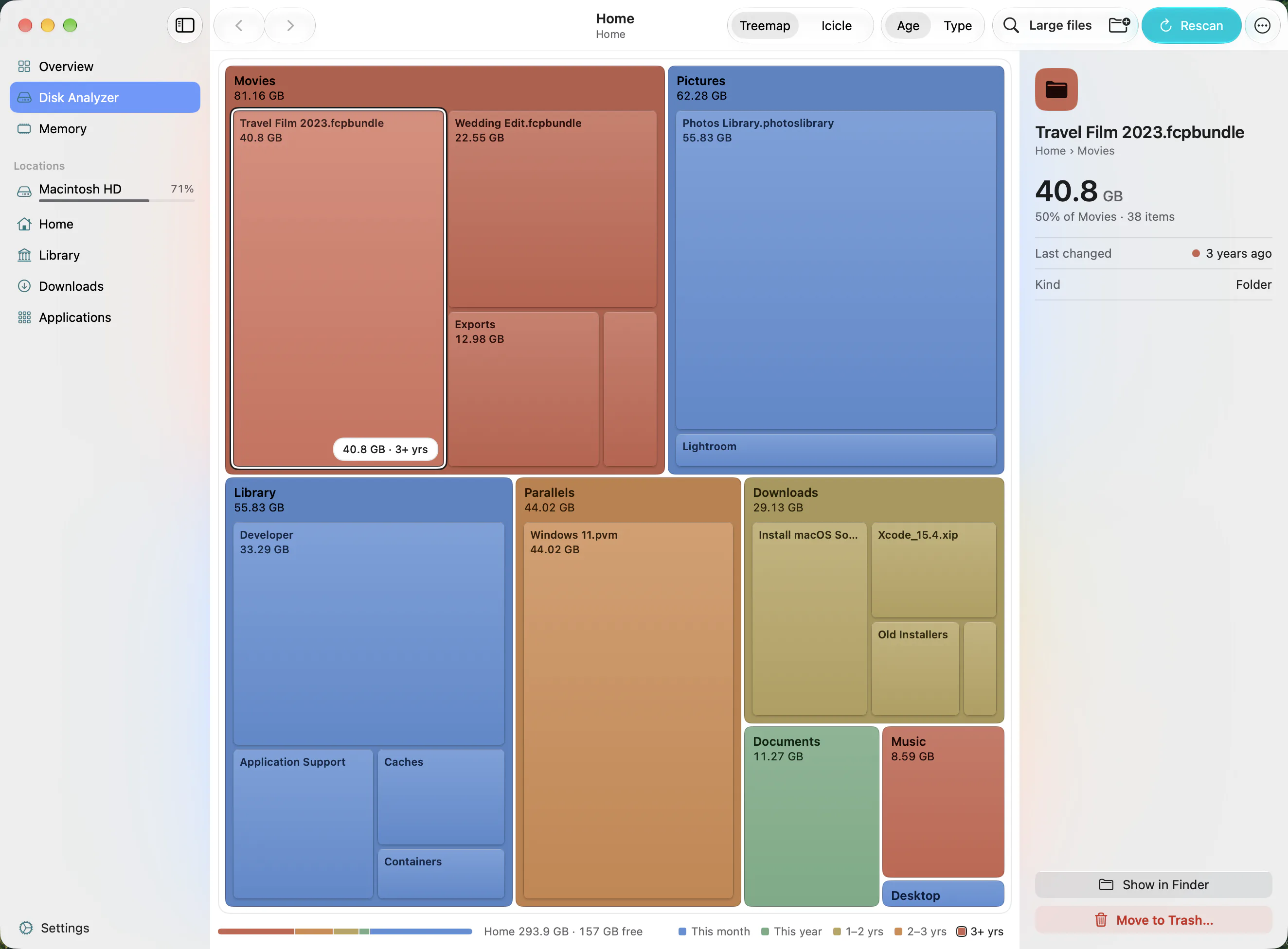
Age colouring is the default, so you see it on your first scan. Pick Home Folder from the folder menu, or click Scan Macintosh HD for the whole disk, and give Klarity access once if it asks. Under the map, a colour bar works as the key, marked 1w, 1mo, 3mo, 6mo, 1y, 2y and 2y+. Hover over a rectangle and a small marker slides along that bar to its age, and the treemap labels it with its size and age bracket. Click it, and the side panel shows the date it last changed. The Age menu in the toolbar switches to colouring by file type and back, and the icicle view can be coloured by age too.
Double-click a big red folder to see what is inside it, and press Escape to come back up. It is also the one feature that sets Klarity apart in my honest comparison with DaisyDisk.
What the colours mean, and what they don’t
Changed, not opened. The colour comes from the date a file last changed, the same Date Modified you see in Finder, not the date you last opened it. For most forgotten things those are close: a video you exported and never watched again has not changed either. But a manual you read every month, or a photo you look at and never edit, will look old in Klarity even though you use it. For “have I actually opened this?”, Finder’s Date Last Opened column and Get Info are the right check, and once Klarity has shown you where to look, that check takes seconds.
A folder takes the colour of its newest item. That means a folder never looks older than the freshest thing inside it, which is the safe direction to be wrong in. It can also hide things: one small file saved last week turns a 30 GB folder of old footage teal. So don’t skip a big teal folder on colour alone. Double-click it, and the colours of what is inside tell the real story.
Scan depth. To stay fast, Klarity opens two levels of folders by default. Folders beyond that are measured but not opened, so their colour comes from the folder’s own date rather than the newest file inside; treat it as a rough guide. The side panel marks them with Double-click to scan deeper, and doing that colours their contents properly. To see everything in one pass, set Scan Depth to Full (slow) in Settings → General, knowing that a big disk then takes longer to scan.
Prefer a list? Filter the large files by age
Click Large Files in the toolbar for a flat list of the biggest files from your scan, each with how long ago it last changed. The age filter offers older than 30 days, 90 days, 6 months or a year. Set it to a year, keep the sort on Largest first, and the top of the list is the forgotten stuff that costs you the most space. Oldest first is there too. The list goes by the same last-changed date as the colours, and it only includes files from folders the scan has opened, so on a two-level scan, drill into a folder or scan deeper first.
Old is not the same as useless
Age is a reason to look, not a reason to delete. Some of the oldest things on a Mac are the most important:
- Tax returns, contracts and records you may need to keep for years.
- Photos and home videos, where old is the point.
- Finished projects a client or employer may ask about again.
- Installers and licence files for software you still own.
For those, the answer to the space problem is to move them, not delete them: an external drive, or cloud storage you trust, with a second copy somewhere. For everything else, right-click the rectangle, choose Reveal in Finder, press the Space bar to preview it, and decide. If you cannot say what created a file, leave it. The guide on how to clean up Mac storage safely goes through what is safe to remove, category by category.
Clearing old files safely
When you are sure, right-click and choose Move to Trash. Klarity asks first every time, and a folder of 1 GB or more needs a deliberate slide to confirm rather than a click. It only ever moves things to the Trash; it never deletes outright and never empties the Trash for you. So nothing is gone until you empty the Trash yourself, and equally, the space does not come back until you do.
A few things are protected by macOS itself, such as apps installed from the App Store. For those, Klarity says so plainly, in words like “Finder needs an admin password to delete …”, and offers Reveal in Finder so you can finish with your password.
What Klarity cannot see yet
One limit, stated plainly. Klarity 1.3 skips folders that macOS hides, and your Library folder is one of them, so a Home scan leaves it out. That is where caches and leftovers from long-deleted apps tend to sit. Version 1.3.1 fixes this and is on its way. Until then, pick Choose Folder… from the folder menu, press Cmd + Shift + G in the panel and type ~/Library. What System Data on a Mac actually is explains what is safe to clear in there.
Klarity is $6.99 once on the Mac App Store, for macOS 14.6 or later. No subscription, no account, and no network access at all, so what it learns about your disk stays on your Mac. One scan with age colouring shows you what you forgot you had.
Questions people ask
How do I find old files on my Mac?
In Finder, press Cmd + F, set the search to This Mac, choose Last opened date and set it to before a date a year or more ago. To see which old files take the most space, use a disk map coloured by age, such as Klarity, where items that are both large and long unchanged stand out at a glance.
How can I see when a file was last opened on a Mac?
Select the file in Finder and press Cmd + I. The Get Info window shows when it was created, modified and last opened. In list view you can also press Cmd + J, turn on the Date Last Opened column and sort by it.
Is it safe to delete files I have not opened in years?
Not automatically. Tax records, photos and finished projects are often old and still important. Look at each item before you remove it, move keepsakes to an external drive, and use the Trash rather than deleting outright, so you can change your mind until you empty it.
Does Klarity show when a file was last opened?
No. Klarity colours files and folders by when they last changed, which is the Date Modified you see in Finder. For forgotten files the two are usually close. To check when something was last opened, use Get Info or the Date Last Opened column in Finder.
Why does an old folder look new in Klarity?
A folder takes its colour from the newest item inside it, so one recently saved file makes the whole folder look recent. Double-click the folder to see everything inside coloured one by one, and the old, large items will stand out again.
— Mukul