The feature that only worked sometimes
Klarity Disk 1.3 (build 1300) is on the Mac App Store today. The change worth writing about is not a new chart. It is that right-clicking a folder and choosing Move to Trash now works wherever you use it, not only where I happened to have tested, which is exactly the gap Macworld’s review found (what that review changed).
Before 1.3 it depended on where the file was. Inside a folder you had already pointed Klarity at, fine. In Downloads, before you had ever pointed at Downloads, deleting a file did nothing at all — and Klarity did not even tell you. On an external drive, the same.
It was not broken in the ordinary sense. It was doing exactly what macOS allowed, which was less than the buttons implied.
Why the app could not touch your files
Every app sold through the Mac App Store is walled off from the rest of your Mac. That is not a setting I chose; it is a condition of being on the store. By default such an app may read and write inside its own private folder and nowhere else.
The only way through that wall is you. If you point the app at a folder yourself, macOS opens the wall for it. Nothing else counts: not knowing where a folder is, not being an app you paid for. You have to point.
So when Klarity reached for a folder you had never shown it, macOS refused. The trouble is how: the refusal comes back looking like an empty folder rather than an error. Which is how you get a disk analyzer telling you Downloads contains nothing.
The file picker is not mine
Here is the part almost nobody is told. When an App Store app shows you a window to choose a folder, that window is not drawn by the app. macOS draws it and runs it separately. Klarity asks for a picker and gets back one thing: what you chose. It cannot see the files you scrolled past, or the folders you decided against.
The moment you click Open, macOS widens the wall to include what you picked. That is the whole idea in one sentence: choosing the folder is the permission. Not a dialog I wrote and phrased persuasively. An actual choice, made in a window I have no control over.
Access given that way would normally vanish when the app quits. macOS lets an app ask to remember it instead, so you are asked once rather than at every launch, and only about what you chose.
What 1.3 changed
Version 1.2 could remember exactly one folder. One. Everything else took the silent path above. The fix is not clever, just done properly, and it has three parts.
One permission per drive, not per folder. When Klarity needs to reach somewhere it cannot, it now asks for the whole drive that thing lives on — your startup disk, or the external drive you plugged in — and remembers each drive separately. Once per drive, not once per file.
It asks before acting, instead of failing afterwards. Every scan and every delete checks access first. If you have already granted it, you see nothing. If not, you get one sheet naming the drive and the reason — “Klarity needs this to move ‘DerivedData’ to the Trash” — then the macOS picker, open in the right place.
A folder it cannot read asks, instead of showing you nothing. Pointing Klarity at Downloads before granting anything used to give a confident, empty, wrong answer. Now it asks.
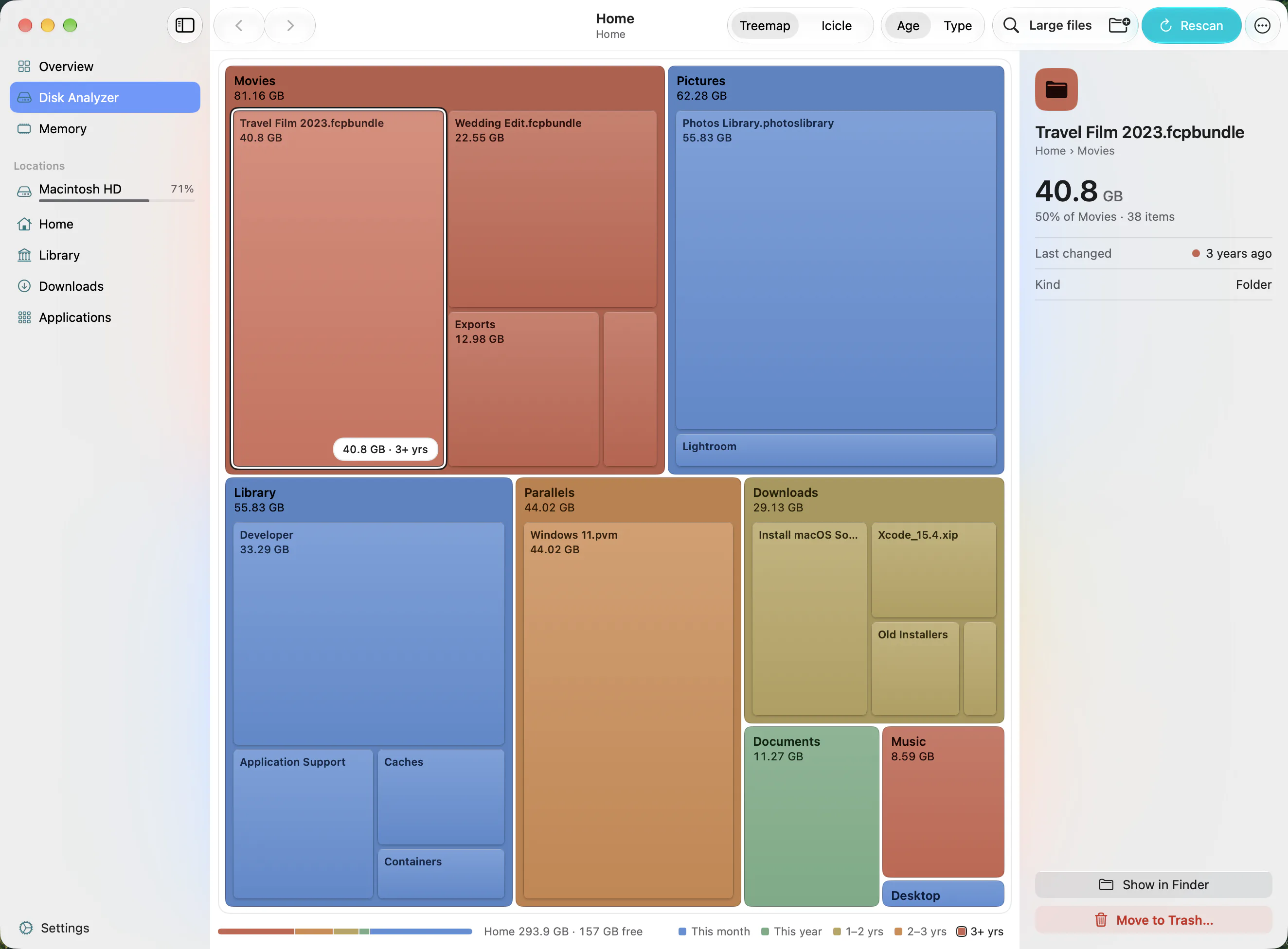
One click for the whole Mac
Once permission works per drive, scanning your whole startup disk stops being a special case, so 1.3 adds a button that does it in one click. That turned up a second bug: modern macOS shows parts of your disk in more than one place at once, and the old scan counted them twice, so your Mac appeared twice as full as it was. 1.3 counts each thing once.
When macOS says no and means it
Some files will not go to the Trash no matter what you allow. They belong to the system, and macOS guards them. Nothing an App Store app can do changes that.
The old version offered a Grant Access button, inviting you to perform a ritual that could not possibly work. 1.3 tells the two cases apart. A refusal from somewhere you never granted still offers Grant Access, which is now rare. One from somewhere you did grant means macOS itself is saying no, so Klarity says Finder needs an admin password to delete this, and offers Reveal in Finder. Not a solution. But an honest sentence beats a hopeful one.
Smaller things: Refresh Interval in Settings now actually changes how often the RAM figures update, and it is remembered — it was read once and then ignored, which is embarrassing to write down. The menu bar settings are remembered too, and the build number now shows after the version, as 1.3 (1300). Full list on the changelog.
Permission lets Klarity measure sizes and move things to the Trash. It never empties the Trash, never deletes outright, and never acts without a confirmation — for a folder of 1 GB or more, a deliberate slide. It makes no network connections, so nothing it learns can leave your Mac.
What 1.3 did not do, and 1.3.1 does
One limitation, stated plainly at the time. Klarity 1.3 skipped folders that macOS marks as hidden, and your Library folder is one of them. So a scan of your Home folder left out Library — where caches, Xcode leftovers and app data pile up, and the folder that explains most of that grey “System Data” bar. That was not macOS’s fault; it was mine.
Update, October 2026: Klarity 1.3.1 fixes it. It scans hidden folders, and Library has its own shortcut in the sidebar. What is safe to delete in there is in what System Data on a Mac actually is.
Why explain any of this
I could have shipped 1.3 with a line saying “improved reliability” and moved on. But a Mac disk space analyzer is an app you point at every file you own and then let move things to the Trash. The reasonable response is suspicion, and suspicion is answered with specifics, not reassurance.
The wall is why Klarity cannot see your disk until you show it. macOS running the picker, not me, is why the picker is worth trusting. macOS remembering your answer is why you are asked once. It also makes no network connections, the other thing I care about and have written about before. What 1.3 fixed is that all of this had been hiding behind a button that sometimes did nothing.
If it still does nothing somewhere I have not thought of, tell me; I answer my own support mail. For what to actually delete, start with how to clean up Mac storage safely, or, if this began right after a system update, where the space goes after a macOS update.
— Mukul