The morning after an update
You installed a macOS update last night. This morning the disk that had room to spare is nearly full, and the obvious move is to start deleting things. Don’t, not yet. Most of what went missing overnight is coming back by itself.
Howard Oakley, who measures this kind of thing carefully at The Eclectic Light Company, tracked his Mac mini through the upgrade to macOS 27. A day after installing, the used space on its internal drive was about 150 GB above where it had been. Over the following days it fell back, and settled about 30 GB higher than before. The part that stayed is largely Apple Intelligence, which macOS 27 downloads by itself; why Apple Intelligence takes 20 to 30 GB covers that part.
What macOS holds on to for a day or two
Apple’s own support page explains a large share of it. With Time Machine on, your Mac saves a snapshot of the startup disk about every hour and keeps each one for 24 hours, and it saves an extra one before installing any macOS update. A snapshot holds on to files as they were. So when an update replaces thousands of system files, the old copies keep their space until the snapshots holding them age out.
You don’t need to do anything about that. Apple says Time Machine deletes snapshots as they age or as the space is needed for something else. The update also downloads and unpacks itself before it installs, and caches and the search index rebuild afterwards, so the first day is the worst one.
See what actually grew, once it settles
After a day or two the question changes from “what is macOS doing?” to “what is on my disk?”. Klarity, the Mac disk space analyzer I build, answers that in one picture. It draws your disk as a treemap: every folder is a rectangle, its area is the space it holds, and its colour shows how long since it last changed, from blue for this month to red for three years or more.
After an update, that colour does real work. Big and blue changed in the last few days: something the update or your apps wrote recently, often something macOS is still using. Big and red is old material that has nothing to do with the update, and it is usually the easier space to win back.
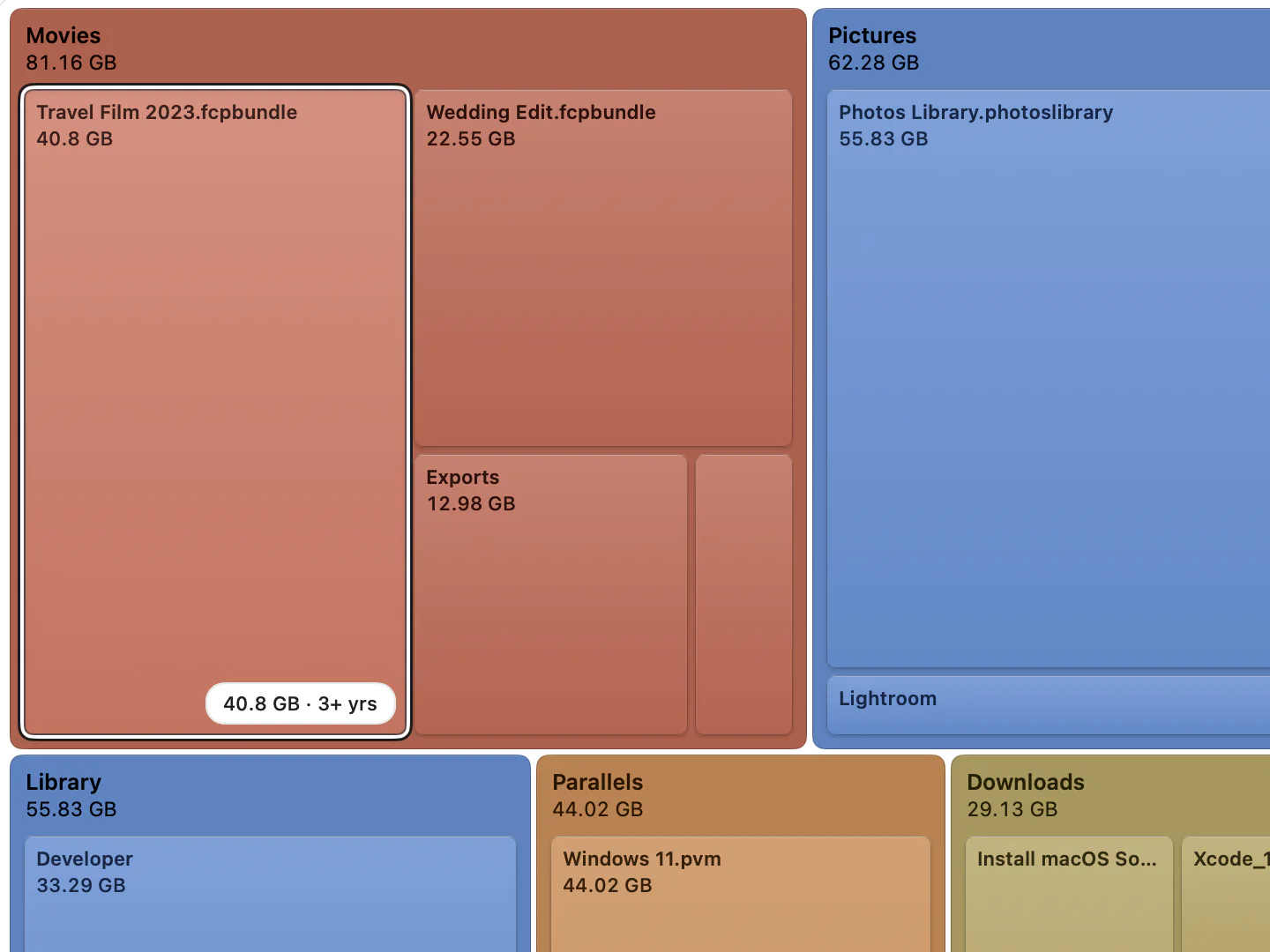
Click Macintosh HD in the sidebar for the whole disk and give Klarity access once if it asks; the biggest rectangles are your answer. One honest limit: snapshots are not files in any folder, so no disk map can show them, Klarity included. If Storage settings and a scan disagree by tens of gigabytes on the first day, the gap is usually snapshots, and it closes on its own.
Klarity is $6.99 once on the Mac App Store, for macOS 14.6 or later. No subscription, no account, and no network access at all.
Why Finder and other apps disagree about free space
Apple puts it plainly: your Mac “counts the space used by snapshots as available storage”. Finder shows that available figure, which is the space free right now plus the space macOS can clear by itself when something needs the room. Some apps, Klarity among them, show only the space that is free right now.
On my own Mac, which runs the macOS 27.2 beta, the difference today is 74 GB: Finder reports 418 GB available, while 344 GB is free right now. Neither number is wrong. The gap is space macOS will hand back when it needs to, and it is exactly the space that swells in the days after an update.
When to wait, and when to act
- The first day: leave it. Don’t delete anything to win back space the update is still using, and leave Time Machine switched on. Its snapshots are what let you get back a file you deleted an hour ago.
- After a day or two: check again, in Storage settings or in Klarity. Most of the temporary space should be back.
- Still short? Now look at your own files. Old iPhone backups, old installers, downloads and video are the usual winners. Mac storage full after an update walks through what typically shows up large, and how to clean up Mac storage gives a safe order.
- Need space this minute? macOS removes snapshots by itself when space is needed, so room often appears as soon as something asks for it. If it doesn’t, an old installer or a big download you no longer need is the quickest few gigabytes.
Questions people ask
Why did my Mac lose free space after a macOS update?
Mostly temporary material. With Time Machine on, your Mac keeps hourly snapshots of the startup disk for 24 hours and saves one more before an update installs, so the old system files keep their space for a while. The update's own download, rebuilding caches and, on macOS 27, Apple Intelligence's models add to it.
How long until the free space comes back?
Usually a day or two. In Howard Oakley's measurements of the macOS 27 upgrade, used space peaked about 150 GB above normal a day after installing, then fell back and settled about 30 GB above where it started.
Why does Finder show more free space than other apps?
Finder counts space that macOS can clear by itself, such as Time Machine snapshots, as available. Apps that show only the space free right now, Klarity included, report a lower figure. Both are correct: the difference is space macOS hands back when something needs it.
Should I delete System Data after an update?
Not in the first day or two. Much of it is snapshots and other temporary material that macOS removes by itself. If it is still large after that, look at what is inside it before you delete anything.
— Mukul