Where did 30 GB go?
You installed macOS 27, gave it time to settle, and your Mac still has less free space than before. Some of that is the new system itself. A large share, on any Mac that can run it, is Apple Intelligence: the on-device models behind the new Siri, Writing Tools and Photos Clean Up. macOS 27 downloads them by itself after the upgrade, without asking.
Apple’s support page says they need up to 14 GB on Macs with M3 or later and at least 12 GB of memory, and up to 8 GB on other Macs. Measured figures are higher. MacRumors found 20.67 GB on an M4 Pro Mac mini and Ars Technica 22.42 GB on an M3 MacBook Air. Howard Oakley, who tracks this closely at The Eclectic Light Company, saw 29.45 GB in Storage settings on his Mac mini. The M1 MacBook Air and the MacBook Neo come in at about 14 GB.
On a 2 TB Mac that is a rounding error. On a 256 GB MacBook Air it is about a tenth of the disk, gone overnight. If you have not upgraded yet, how much space macOS 27 needs covers the install itself.
How to see how much your Mac is using
- Open System Settings → General → Storage.
- Click the i button next to macOS.
- Apple Intelligence has its own line in the panel that opens.
Apple does not say whether its 14 GB is counted the same way as that line, which may explain part of the gap. Either way, the number in Storage settings is the space it is taking on your disk.
The part you can’t change, and the part you can
The honest bit first. Klarity, the Mac disk space analyzer I build, cannot measure the Apple Intelligence models. macOS locks the folders that hold them: when I tried to look inside on my own Mac, which runs the macOS 27.2 beta, macOS refused, even though the folders around them opened fine. Klarity will not move anything in the System folder to the Trash either, and you should not want it to.
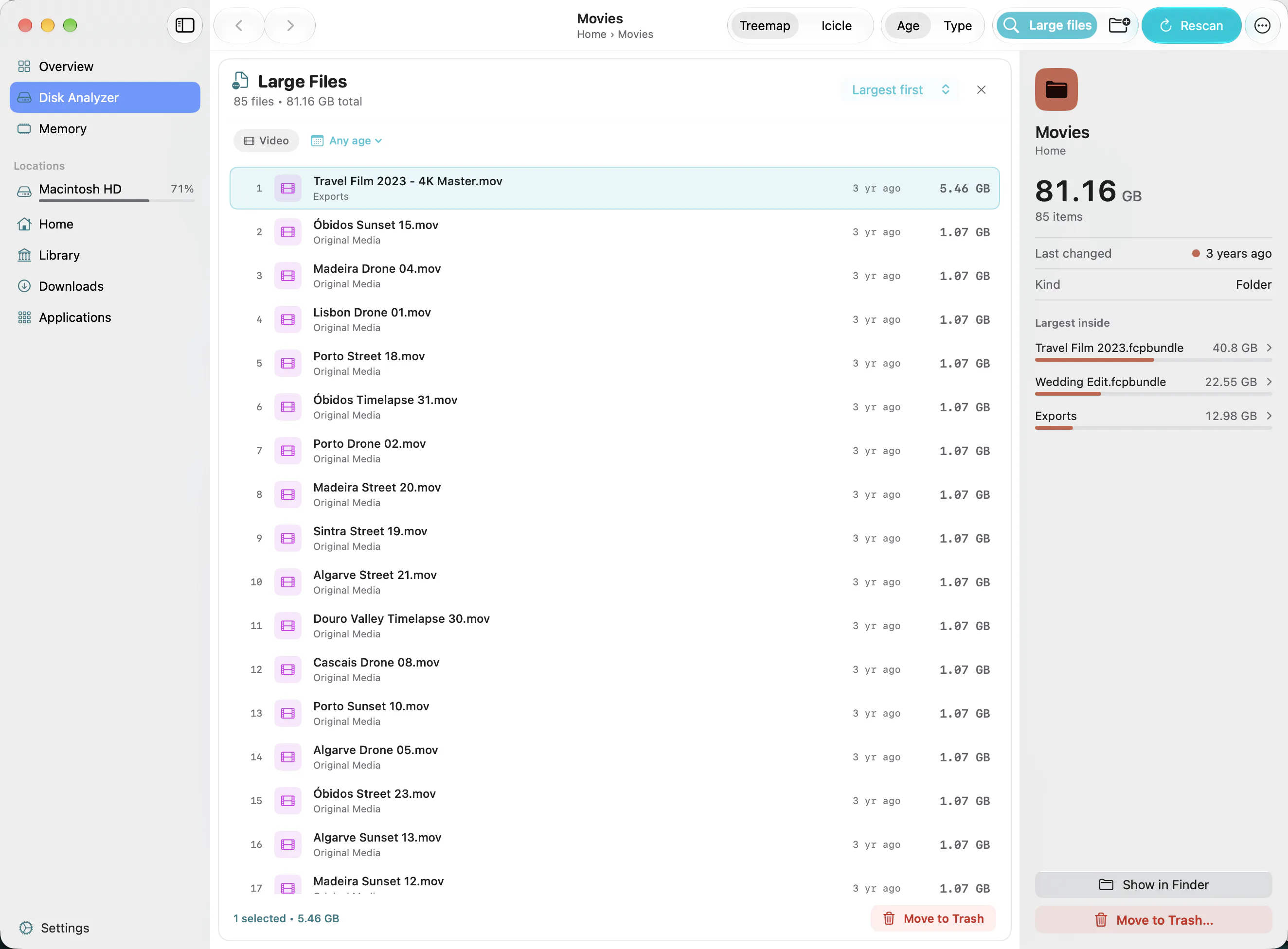
What Klarity shows is everything else, and that is where the space comes back from. If Apple Intelligence takes 25 GB you cannot touch, the useful question is where the 25 GB you can touch are hiding. Klarity draws your disk as a treemap: every folder is a rectangle, and its area is the space it holds. It colours each one by how long since it last changed, from blue for this month to red for three years or more. The rectangles worth a look are the large and red ones: things you have not touched in years.
Click Macintosh HD in the sidebar for the whole disk, or Home for your own files, and give Klarity access once if it asks. It scans hidden folders too, such as your Library, where caches and old iPhone backups pile up. For a list of the biggest single files, click Large files in the toolbar.
Klarity is $6.99 once on the Mac App Store, for macOS 14.6 or later. No subscription, no account, and no network access at all.
Can you turn Apple Intelligence off?
Not in the way you might hope. According to MacRumors, macOS 27 removed the switch that turned Apple Intelligence off, and the models download after the upgrade whether you use the features or not. Turning Siri off frees some of the space, Oakley found, but not all of it.
You will find tools that strip the models out anyway. The best known, an open-source tool called RemoveMacAI, uses a configuration profile to stop macOS managing the models, deletes them, and blocks them from coming back. Its developer puts the saving at about 12 GB. I would not use it on a Mac you depend on:
- You lose a lot. The new Siri, Writing Tools, Genmoji, Image Playground, summaries, Photos Clean Up and more all go with it.
- It may not last. It relies on settings Apple has already marked as deprecated, so a future macOS update could break it.
- It is unofficial. MacRumors, which reported on it, does not endorse it, and running a script from the internet on the Mac that holds your files is a risk of its own.
The safer trade is to leave Apple Intelligence alone and take the space back from things that are yours.
Where the space usually comes back from
- Old iPhone and iPad backups. Often 10 to 50 GB each. They live in your hidden Library folder, so they show up in a Klarity Home scan, but remove them the supported way: Finder → your device in the sidebar → Manage Backups.
- Old macOS installers. An
Install macOS Tahoeleft in Applications is usually more than 10 GB, and it will never be used again. - Downloads. Disk images and zip files you already opened. Click Downloads in Klarity’s sidebar, then Large files.
- Video. Screen recordings, exports and editing libraries, often the biggest red rectangles of all.
- Xcode, if you write software. On my Mac the iOS and watchOS simulator runtimes take 34 GB, more than Apple Intelligence on most Macs. Remove the ones you no longer test against from inside Xcode’s settings.
- The Trash. Until you empty it, the space is not free.
For a safe order to work through, see how to clean up Mac storage.
Give it a day after upgrading
One more reason not to rush. Oakley watched his Mac’s used space climb about 150 GB above normal in the first 24 hours after the upgrade, then fall back to about 30 GB above where it started. Much of that gap is working space macOS clears by itself. Check your free space again a day or two later before you delete anything, and if it still has not come back, Mac storage full after an update walks through the usual suspects.
Questions people ask
How much storage does Apple Intelligence use on a Mac?
Apple says up to 14 GB on Macs with M3 or later and at least 12 GB of memory, and up to 8 GB on other Macs. Measured figures on macOS 27 are often higher: about 20 to 30 GB on recent Macs, and about 14 GB on the M1 MacBook Air and the MacBook Neo. To see your own figure, open System Settings, then General, then Storage, and click the i button next to macOS.
Can I turn off Apple Intelligence to save space on macOS 27?
Not fully. macOS 27 removed the switch that turned Apple Intelligence off, and the models download after the upgrade either way. Turning Siri off frees some of the space but not all of it. Third-party tools that delete the models exist, but they are unofficial, remove many features and may stop working after a macOS update.
Is it safe to delete Apple Intelligence files myself?
No. The models sit in folders that macOS protects, and the features you use depend on them. Leave them alone and free space elsewhere: old iPhone backups, old installers, downloads, video and the Trash usually add up to more.
Can Klarity remove Apple Intelligence?
No. Klarity cannot look inside the folders that hold the models, and it will not move anything in the System folder to the Trash. What it shows is where the rest of your space went, so you can win it back from your own files.
— Mukul