macOS 27 is the last stop for Intel apps
Apple moved the Mac to its own chips years ago, and Rosetta is what has kept older Intel apps running since. That ends soon. Apple told developers on 1 September that macOS 27 is the final release to support Rosetta: “Intel-only apps will no longer run on Mac computers with Apple silicon after this update.” The one exception Apple names is older, unmaintained games that rely on Intel-based frameworks.
You may have had a warning already. Since macOS 26.4, opening an app that relies on Rosetta can bring up a notice that it will not open in a future release of macOS. And when you upgrade to macOS 27, the upgrade removes Rosetta, Six Colors reports; the first time you open an Intel app afterwards, macOS asks to install it again. Not every app asks. In 9to5Mac’s testing, some menu bar utilities simply stopped working, with no message at all.
So your Intel apps still work on macOS 27, but this is the year to sort them out: update the ones you use, replace the ones that will never be updated, and clear out the ones you forgot you had.
Find out which of your apps are Intel
macOS keeps the list for you. According to Six Colors:
- Open System Settings → General → About.
- Click Details next to Intel-based Apps.
- You get the apps that need Rosetta, and when you last opened each one in the past year.
To check one app, select it in Finder and choose File → Get Info; an Intel app shows a warning next to Kind. The list covers apps, not every small background part an app installs, which is why a printer driver or a menu bar helper can still surprise you.
See what they cost you, with Klarity
Klarity, the Mac disk space analyzer I build, cannot tell you whether an app is Intel or Apple silicon. That is what the list in System Settings is for. What Klarity shows is the other half of the decision: how big each app is, how long since it last changed, and what it has left scattered around your Mac.
Click Applications in Klarity’s sidebar, and give Klarity access once if it asks. Every app becomes a rectangle sized by the space it takes, coloured by how long since it last changed, which for an app usually means when it was last installed or updated: blue for this month, through green, gold and orange, to red for three years or more. A big red app has not been updated in years. That is not proof it is an Intel app, but it is a good place to start comparing with the list in System Settings.
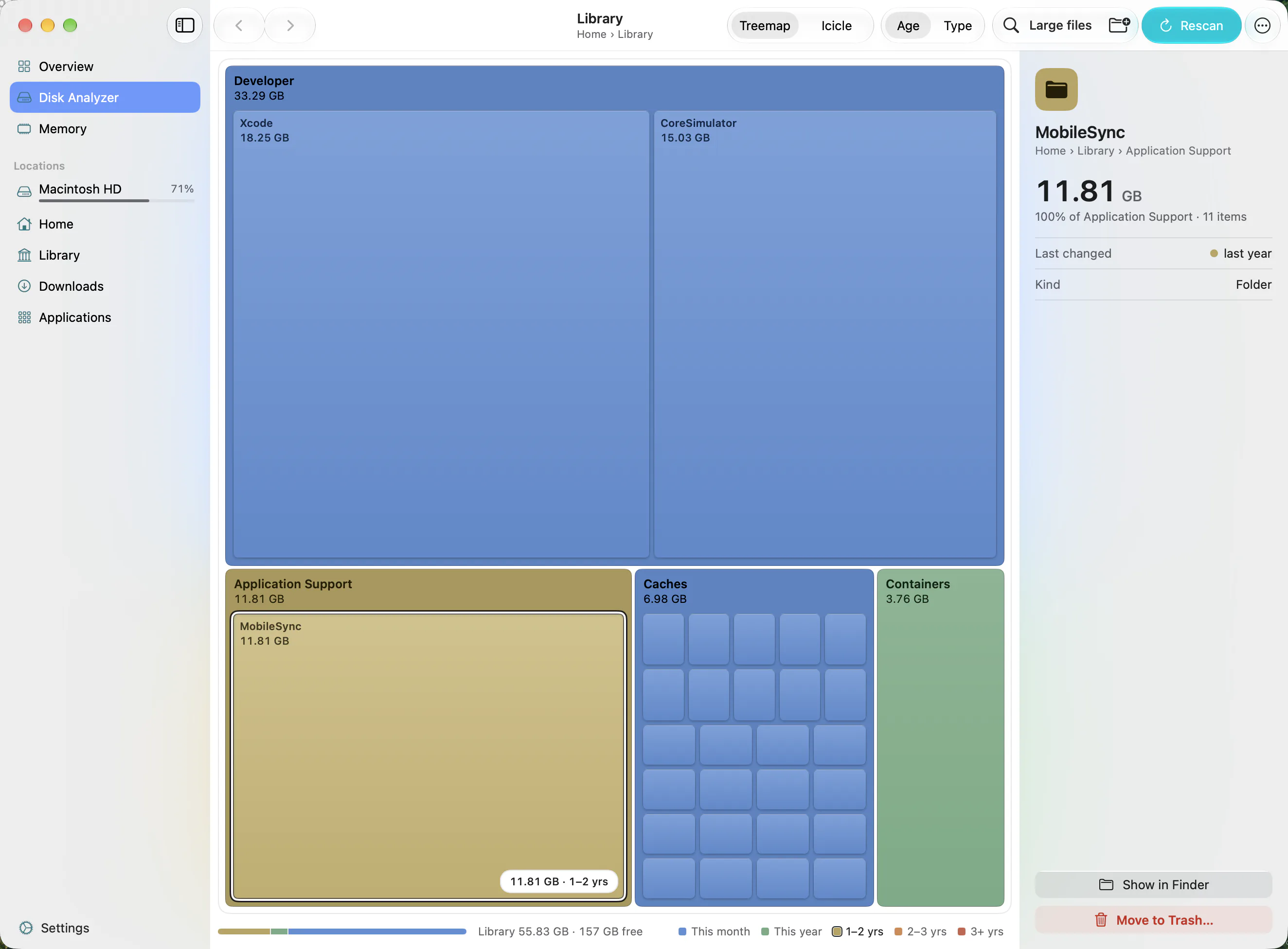
Apps also leave things behind. Click Library in the sidebar and look inside Application Support, Caches and Containers for folders named after apps you no longer use. Klarity scans hidden folders like Library, so they are in the map.
Klarity is $6.99 once on the Mac App Store, for macOS 14.6 or later. No subscription, no account, and no network access at all.
Decide app by app
- Update it. Check the App Store or the developer’s site for a newer version. Many apps were rebuilt for Apple silicon long ago, and the old copy on your Mac simply predates it.
- Replace it. If the developer has stopped updating it, look for an alternative now, while the old app still opens and you can move your work across.
- Remove it. If the list in System Settings shows you have not opened it this year, you probably will not miss it.
- Keep it, for now. An app you still need keeps working on macOS 27. Just know that it will not open after you move to the next major release.
- Games. Apple says older, unmaintained games that rely on Intel-based frameworks will keep working.
Clear them out properly
Move the app to the Trash, from Finder or with a right-click and Move to Trash in Klarity. Apps installed from the App Store are protected by macOS; Klarity says so plainly, in words like “Finder needs an admin password to delete …”, and offers Reveal in Finder so you can finish with your password.
Then the leftovers. Support files in your Library folder are usually small, but some apps, creative suites and virtual machines especially, leave gigabytes behind; use the vendor’s own uninstaller where there is one. Klarity asks twice before it moves app data to the Trash, so a wrong click is easy to back out of. How to clean up Mac storage covers uninstalling properly in more detail. Finally, empty the Trash: until you do, the space is not free.
Questions people ask
Will Intel apps stop working in macOS 27?
No. macOS 27 still runs them through Rosetta, although the upgrade removes Rosetta and macOS asks to install it again the first time you open an Intel app. Apple says macOS 27 is the final release to support Rosetta, so Intel-only apps will not open on Apple silicon Macs after it, apart from some older games.
How do I see which apps on my Mac are Intel-based?
Open System Settings, then General, then About, and click Details next to Intel-based Apps. The list shows the apps that need Rosetta and when you last opened each one. For a single app, select it in Finder and choose File, then Get Info.
Can Klarity tell which apps are Intel-based?
No. Klarity shows how big each app is, how long since it last changed, and what it left behind in your Library folder. The Intel-based Apps list in System Settings is the place to check which apps need Rosetta.
Is it safe to delete Intel apps I no longer use?
Yes. Removing an app does not remove the documents you made with it. Move the app to the Trash, then look in your Library folder for the support files it left. Keep any app you still rely on until you have a replacement that runs natively.
— Mukul