The file that says 64 GB but is not
If you use Docker Desktop, Parallels, UTM or VMware Fusion, your Mac holds at least one very large file you never made yourself: the disk of a whole second computer. Docker keeps every image and container you have pulled inside one file called Docker.raw. Each virtual machine keeps its own disk the same way, inside a .pvm, .utm or .vmwarevm package.
Then the numbers stop making sense. Finder says the Docker file is 64 GB, or whatever limit you set. One clean-up app says your virtual machines take 200 GB. Storage settings says something else again. You delete a few images in Docker and nothing seems to change. It is hard to clean up when you cannot tell what is actually there.
The good news: most of the time these files take far less space than they appear to. The bad news: the space they do take only grows, unless you shrink it from inside the app that owns it. This guide shows you how to see the real figure, and then how to get space back without opening Terminal.
Why the size looks bigger than it is
A virtual disk is made to look like a full-size drive to the system running inside it. Linux in Docker, or Windows in Parallels, sees a 64 GB disk and expects it to be there. But making a real 64 GB file up front would waste space you may never use.
So the file only reserves its size. Think of a notebook with 64,000 numbered pages, where only the pages that have something written on them use any paper. The file says it is 64 GB long, but your Mac only stores the parts that have been written to. Docker’s own example is a file that reserves 64 GB and uses about 2. These are called sparse files, and the Mac handles them well.
That is why you see two numbers. Select the file in Finder and choose File → Get Info: next to Size you get the reserved size, and in brackets the space it takes on disk. Only the on-disk number is space you can get back.
Many tools add up the reserved size instead, and so they overstate these files, sometimes by tens of gigabytes. Docker’s own Mac FAQ warns about exactly this: other tools “might display space usage of the file in terms of the maximum file size, and not the actual file size.” If a clean-up app tells you to delete your Docker data to win back 64 GB, check the on-disk figure first. You may get back far less than it promises.
The other half of the puzzle is that a virtual disk rarely shrinks by itself. When you delete files inside a virtual machine, the guest system marks that space free, but the Mac still holds the pages it once wrote. Docker says space comes back when you delete images, not when you delete files inside a running container. So a VM that once held 40 GB can keep taking 40 GB even after you have emptied it out.
See what they really take, with Klarity
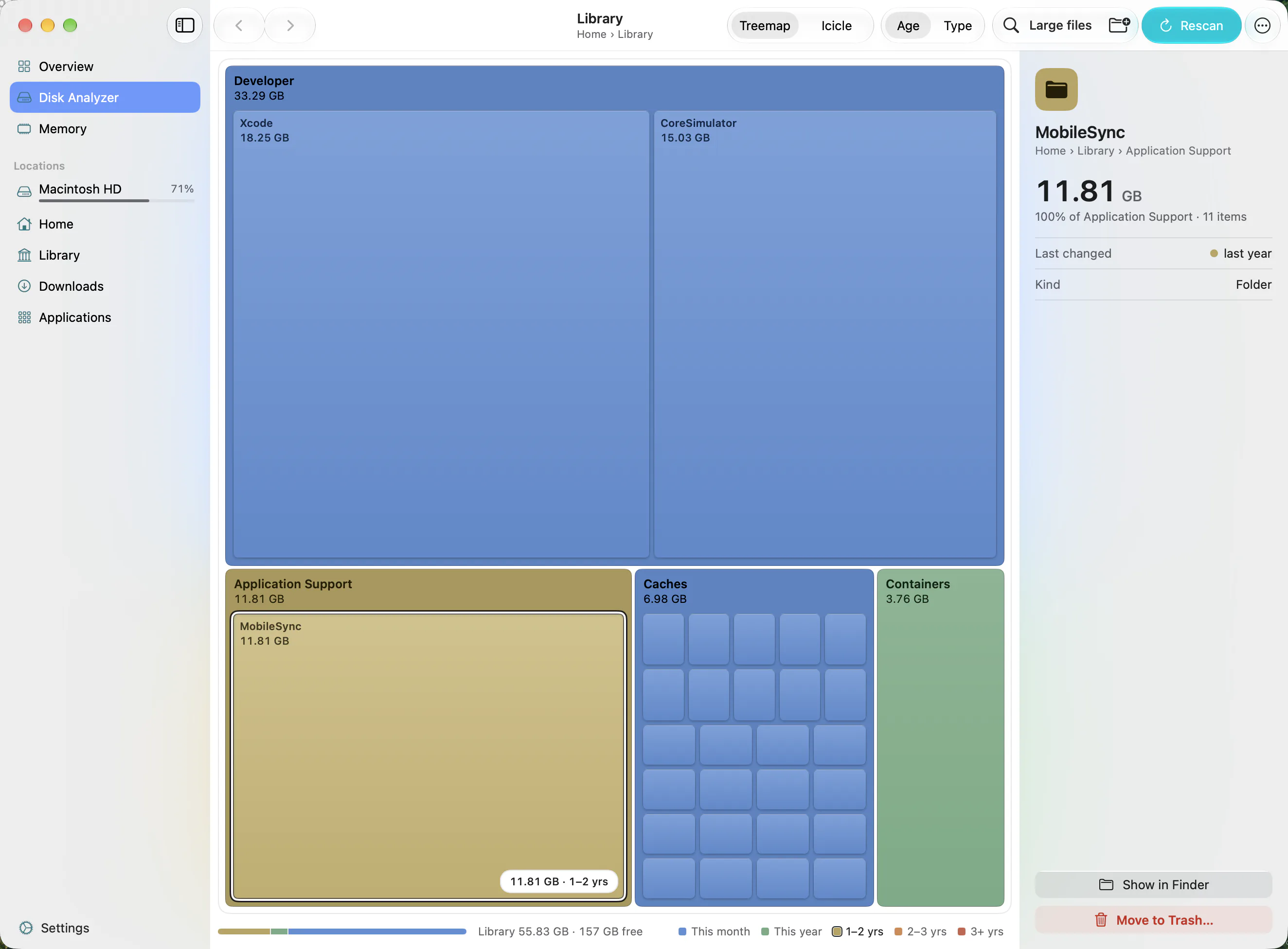
Klarity, the Mac disk space analyzer I build, draws your disk as a map of rectangles: every folder and file is a box, and its area is the space it holds. Since version 1.3.1, that space is the on-disk figure, the same one Finder puts in brackets. A Docker file that reserves 64 GB but uses 9 GB is drawn as 9 GB. Nothing is overstated, so the biggest box really is the biggest thing to deal with.
Where to look:
- Docker Desktop keeps its disk in your Library folder, under Containers → com.docker.docker → Data → vms. Click Library in Klarity’s sidebar and double-click your way in. If you moved it, Docker shows the current place in Settings → Resources → Advanced, under Disk image location.
- Parallels Desktop keeps virtual machines in a Parallels folder in your Home folder by default, according to Parallels’ user guide. The App Store edition keeps them under Library → Group Containers instead.
- UTM keeps its virtual machines inside your Library folder too, under Containers → com.utmapp.UTM.
- VMware Fusion, and any of the others: in the app’s list of virtual machines, right-click one and look for Show in Finder. Then point Klarity at that folder.
Klarity scans hidden folders like Library, so all of these show up in the map. Colour by Age adds the second half of the story: a virtual machine coloured red has not changed in three years or more, which usually means nobody has started it in that time. Click any box and the inspector on the right shows its size, how long since it last changed, and what is largest inside.
Klarity is $6.99 once on the Mac App Store, for macOS 14.6 or later. No subscription, no account, and no network access at all.
Shrink Docker Desktop from inside Docker
Do not delete or move Docker.raw in Finder. It holds every image, container and volume you have, and Docker’s FAQ warns that moving it by hand “can cause Docker Desktop to lose track of the file.” Everything below happens in the Docker Desktop window.
- Delete what you no longer use. In Docker Desktop’s Containers, Images and Volumes views, select old ones and delete them. Stopped containers and old image versions add up quickly. Be careful with volumes: they often hold a database’s data.
- Set a ceiling. Settings → Resources → Advanced has a Disk usage limit, the most space Docker may use. Raising it costs nothing up front. Lowering it is not a quick fix: Docker’s older documentation warned that reducing the size deletes the current disk, and with it every container and image.
- Start again, if you mean to. Under Troubleshoot, the question-mark icon at the top right of the window, Clean up data wipes all local containers and images but keeps your settings. Do this only if everything you need can be pulled or rebuilt again.
After a clean-up, scan the folder again in Klarity (⌘R) and compare. The box should be smaller; if it is not, give Docker a few minutes and look again.
Shrink a virtual machine from inside its app
Each VM app has its own way to hand back unused space. Two things matter more than which app you use: shut the VM down first, and delete snapshots you no longer need. A snapshot keeps an old copy of everything that has changed since it was taken, so a VM with a few old snapshots can be far larger than the system inside it.
- Parallels Desktop. Choose File → Free Up Disk Space…. Parallels suggests working through it in order, deleting snapshots first, then using Reclaim on the selected VM. You can also turn on Reclaim disk space on shutdown in the VM’s configuration, on the General tab. Do not force the VM to stop while it reclaims.
- UTM. With the VM shut down, open its settings, choose the drive, and use Reclaim Space (or Compress, which also packs the data smaller). UTM’s documentation calls these experimental and says to back up the VM first.
- VMware Fusion. Shut the VM down, open its Settings → General, and use Clean Up Virtual Machine. The button only appears when there is space to reclaim or snapshot files to merge, and Fusion’s documentation says only Windows VMs hand freed space back to the Mac this way.
Reclaiming only returns space the guest system has already marked free. If the VM itself is full of old downloads and updates, clean those up inside the VM first, then reclaim.
Removing a VM you no longer need
Sometimes the honest answer is that you will never start that Windows 10 VM again. Then the whole thing can go, and it is often the biggest single win on the disk. But be clear about what that means: deleting a virtual machine’s file deletes that whole computer, with every file and app inside it. Copy out anything you want to keep first, while it still starts.
Remove it from inside the app where you can: Parallels, UTM and Fusion each offer a remove or delete option in their list of VMs, and that way the app does not go looking for a VM that is gone. Klarity can move one to the Trash too, with a right-click and Move to Trash, but it takes care: a virtual machine package of 1 GB or more needs a deliberate slide to confirm, and because Docker and UTM keep their disks inside your Library folder, Klarity shows an extra warning before it moves anything from there. For Docker, use the steps above instead.
Klarity only ever moves things to the Trash; it never deletes outright. Until you empty the Trash, the space is not free. For the rest of the disk, how to clean up Mac storage covers what else is safe to delete, and if the grey System Data bar in Storage settings is your real worry, what System Data on a Mac is explains what that grey bar holds.
Questions people ask
Why does Docker.raw say 64 GB in Finder?
Docker.raw is a sparse file. It reserves the size you allowed Docker to use, but your Mac only stores the parts Docker has actually written. In Finder, choose File, then Get Info: the figure in brackets after on disk is the space it really takes.
Is it safe to delete Docker.raw?
Only if you are happy to lose every Docker image, container and volume on the Mac. Do not delete or move it in Finder. To shrink it, delete what you no longer need in Docker Desktop, or use Clean up data under Troubleshoot to start again.
How do I make a Parallels virtual machine smaller?
Choose File, then Free Up Disk Space in Parallels Desktop. Delete snapshots you no longer need first, then use Reclaim on the virtual machine. You can also turn on Reclaim disk space on shutdown in the VM's configuration, on the General tab.
Does Klarity show the real size of virtual machine files?
Yes. Since version 1.3.1, Klarity counts the space each file takes on disk, the same figure Finder shows in brackets, so sparse Docker and virtual machine disk images are not overstated.
— Mukul